How to Share GST Invoice on WhatsApp
Learn how to send GST invoices with UPI QR on WhatsApp using GimBooks and get paid faster using payment reminder without manual follow ups.

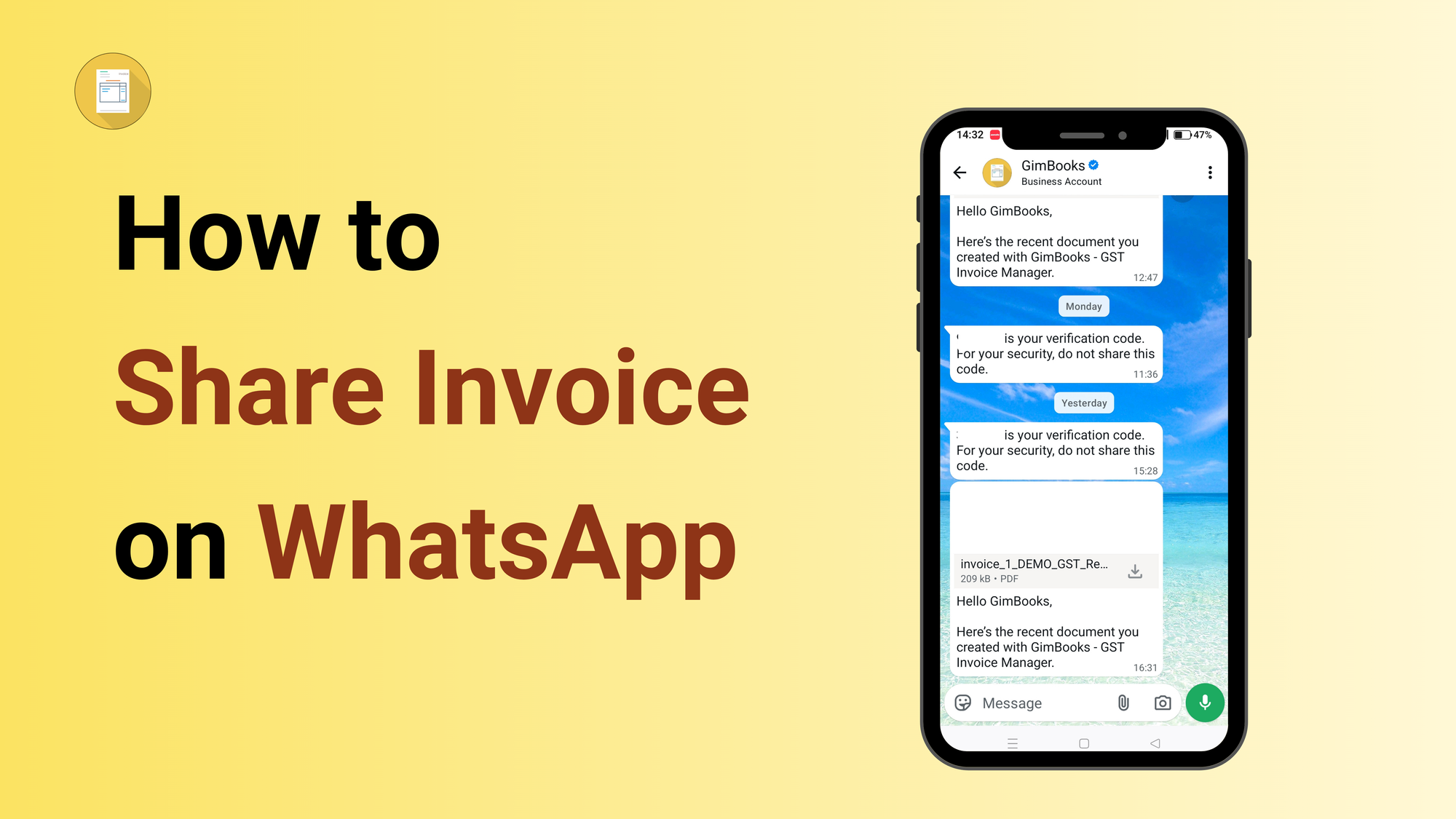
Your customer places an order. You create the bill. You print it, fold it, hand it over, or worse, you wait three days for them to "check their message. "Meanwhile, they are on WhatsApp. Right now. They will see your message within 5 minutes. They will open it. They will read it. And if you have added a UPI link, they will pay it. The question is not whether to send invoices on WhatsApp; it is whether your billing software is doing it the right way.
This blog shows you exactly how to share an invoice on WhatsApp from GimBooks, step by step, with every setting explained so you collect faster, follow up less, and look more professional doing it.
Why Indian Businesses Share GST Invoices on WhatsApp in 2026
India has 700 million WhatsApp users, the largest WhatsApp user base in the world. Your customers, suppliers, accountants, and delivery partners are all on it. It is the most-checked app on every Indian smartphone, across every tier of city and town.
Here is what changes when you switch from printing or emailing to WhatsApp invoicing:
You get paid faster.
A customer who receives a bill on WhatsApp can pay it in the same conversation by scanning UPI QR code, authenticating, and completing the payment.
No switching apps, no searching for bank details, no "I'll do it later."
Businesses that add UPI links to WhatsApp invoices report payment timelines dropping from weeks to hours.
You create a paper trail both parties trust.
The invoice sits in the WhatsApp chat, date-stamped, seen-receipted, and impossible to deny. "I never received the bill" stops being an excuse the moment you can show the blue ticks.
- You look more professional than your competition.
- A neatly formatted PDF invoice arriving with your shop logo, itemized GST breakup, and a tap-to-pay UPI button signals a serious business.
- It builds trust with new customers and commands faster payment from regulars.
- You save time on every single transaction.
- No printing, no emailing, no following up manually.
GimBooks sends the invoice and can automatically follow up with reminders if you do nothing after creating the bill.
UPI processed over 20 billion transactions in August 2025 worth more than ₹24.85 lakh crore.
Your customers are ready. The only thing missing is your billing software doing it right.
What You Need Before Sharing a GST Invoice on WhatsApp
Before you share your first invoice on WhatsApp from GimBooks, make sure these four things are in place:
1. GimBooks app installed on your Android or iOS phone
WhatsApp invoice sharing works best on mobile apps. Download GimBooks from the Play Store or App Store if you haven't already.
2. WhatsApp installed on the same phone
GimBooks shares invoices by opening WhatsApp with the bill pre-loaded. WhatsApp must be on the same device.
3. Customer's mobile number saved in GimBooks
When you create a customer (party master), enter their WhatsApp number.
4. Your business details filled in GimBooks settings
Your shop name, GSTIN, address, and logo should be set up before sharing invoices; they appear on every bill the customer receives. Go to Settings → Business Profile and complete all fields.
Optional but strongly recommended: Bank a/c added in GimBooks Invoice Settings
If you want customers to pay directly from the WhatsApp invoice, add your UPI ID in GimBooks' settings. This adds a payment link in every invoice automatically.
Get Paid in Minutes: Share GST Invoice on WhatsApp (Step-by-Step)
How to Share GST Invoice on WhatsApp from GimBooks (Step by Step)
Once you do this step once, it takes under 15 seconds on every future invoice.
On the GimBooks Mobile App:
Instant invoice generation. Share invoice instantly on WhatsApp
Step 1: Create or open your invoice
Tap the invoice, then on + button on to create a new sale invoice. Add the customer name, items, quantities, and GST. Or open an existing invoice from your sales list.
Step 2: Tap the Share button
Once the invoice is saved, you will see a row of action icons at the bottom of the invoice screen. Tap the WhatsApp icon (it looks like the WhatsApp logo: a white phone on a green background).
Step 3: Confirm the customer's number
GimBooks has the WhatsApp number from your customer's master. If there are several numbers stored, please choose the right one. Alternatively, you can enter a different number if you prefer.
Step 4: Review the message and invoice PDF
A preview screen shows you the invoice PDF that will be sent. You can add the message if you want to add a personal note.
Step 5: Tap Send Invoice on WhatsApp
Step 5: Send Invoice on WhatsApp
GimBooks opens WhatsApp with the invoice PDF attached and the message.
That is it. Five steps. Under 15 seconds.
What Happens When Customer Receives Your Invoice
When your customer receives the WhatsApp invoice from GimBooks, they see:
- A message with your shop name, invoice number, amount, and due date
- A PDF attachment they can open, save, or forward
- (If enabled) A UPI payment QR code inside the PDF
- Your business logo at the top of the invoice
- Full GST breakup: taxable amount, CGST/SGST or IGST, and total.
The invoice PDF opens in any PDF viewer on their phone.
All you do is tap on Send in WhatsApp.
The invoice lands in the customer's chat instantly.
That is it. Five steps. Under 10 seconds.
4 Steps to Easily Add a UPI QR code in GimBooks Invoice
When your customer opens the invoice PDF on WhatsApp, they can scan the UPI QR code and pay instantly.
 Noorleen Kaur Bhatia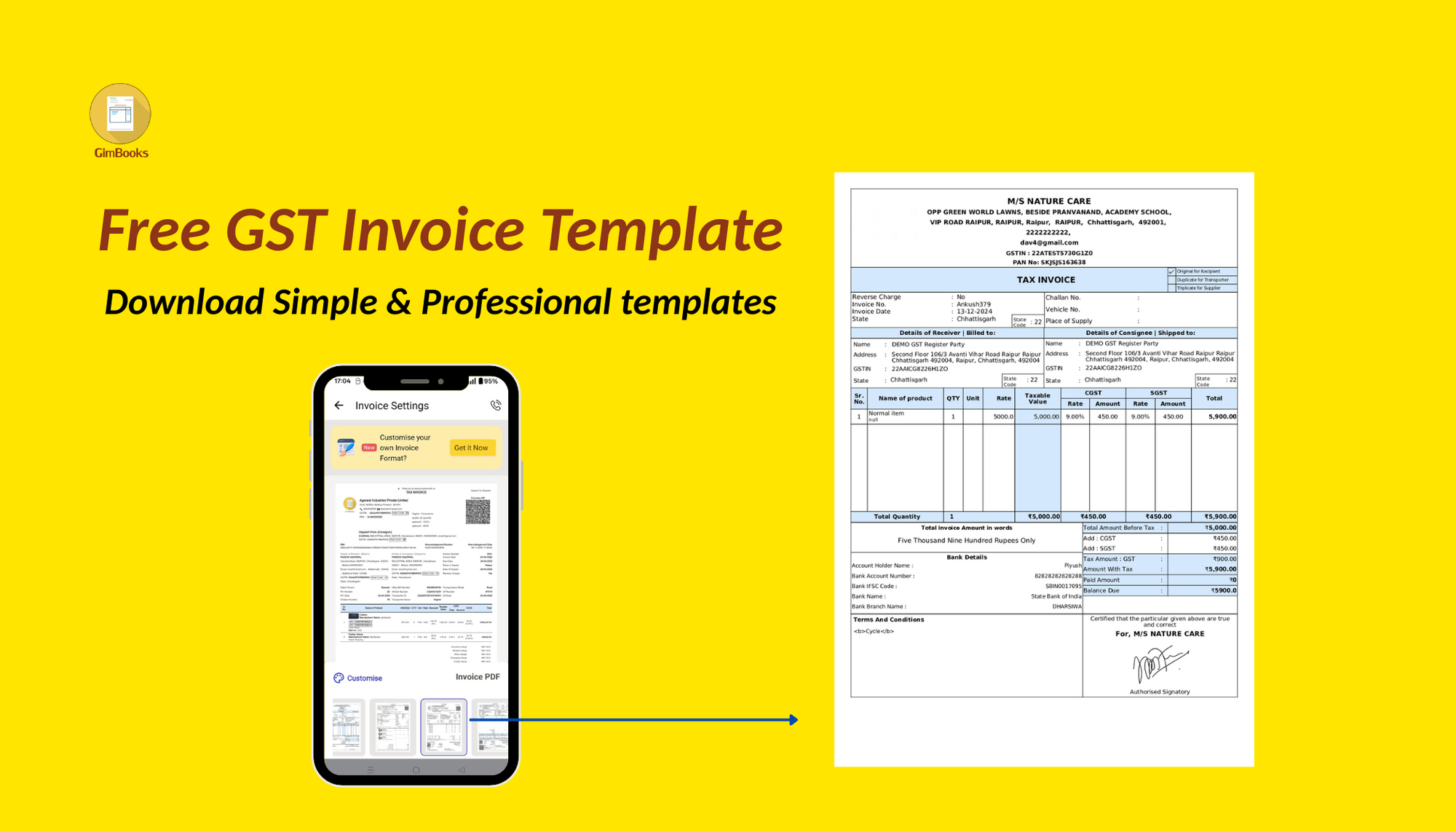
Customise Invoice
Step 1: Go to Settings->Invoice.
Open the app and tap the Settings icon in the top right corner (3-button icon).
Step 2: Enable Bank / UPI QR code options
Toggle on the options to display a UPI QR code on invoices.
Step 3: Add Bank account details
Add your bank account linked with your UPI ID and phone number registered with UPI in the invoice.
Step 4: Save the details
Save all the details in the invoice, and the invoice preview will appear with the UPI QR code.
Share the GST Invoice via WhatsApp. Generate a test invoice and forward it to your WhatsApp number.
Open the PDF to verify that the QR code or payment link appears as intended. Scan the QR code once to confirm it directs to your correct UPI ID.
From this point forward, every invoice you send through WhatsApp, both present and future, will automatically incorporate your UPI payment information.
How to View GST Invoice Payment Status
To view invoice payment status, select the invoice from the invoice list.
Click on the setting slider right beside the search bar.
Then select however you want to sort and filter invoice payment status.
How to Set Up Invoice Payment Reminders
Creating and sharing the invoice is the first step. Following up when payment is due or overdue is where most small businesses lose money. They feel awkward asking regulars to pay. They forget to follow up with new customers. The reminder never happens.
GimBooks can send automatic WhatsApp payment reminders so you never have to chase a customer manually again.
Click to see how to send payment reminders in GimBooks:
- Go to Invoice List.
- Click on the invoice for which you want to share a payment reminder.
- Now click on the 3 dots in the bottom right of that invoice.
- Then, click on the third option, "Send Payment Reminder."
Always include the invoice number; customers with multiple purchases need this to match payments.
Fix Common GST Invoice Sharing Problems
| Invoice Problems | Fix Invoice Problems |
|---|---|
| WhatsApp opens, but the invoice doesn't attach | The invoice PDF might not have finished generating. Wait 2–3 seconds after saving the invoice before tapping Share. Also, ensure you have sufficient phone storage, as full storage can prevent PDF creation. |
| Invoice goes to the wrong WhatsApp number | Check the customer's WhatsApp number. Open the customer profile and update the correct mobile number. Always verify the number when creating a new customer. |
| Customer says they can't open the PDF | Ask the customer to update WhatsApp to the latest version. PDF viewing requires an updated app. Alternatively, share the invoice as a link so it opens in a browser without needing a PDF viewer. |
| UPI QR code not showing on the invoice | Go to Settings → Invoice Settings and ensure UPI payment is enabled with your UPI ID saved. If added later, re-share the invoice so the QR code appears. |
Conclusion on Sharing Invoice Instantly
With GimBooks you can instantly share invoices with your customers on WhatsApp, boosting your cash flow by adding a UPI QR code to the invoice; send payment reminders for timely invoice payment collection; and view and record invoice payments.
If you’re still writing paper bills, sending them manually, or waiting for customers to “come back and pay,” you’re creating a problem where none needs to exist.
With GimBooks:
- You create invoices in seconds
- You send invoices instantly on WhatsApp
- You enable UPI payment collection
- You automate payment reminders without awkward follow-ups.
Start sending invoices the way your customers actually respond to and watch your payment cycle shrink from days to minutes.
Frequently Asked Questions GST Invoice Sharing on WhatsApp
Q: How do I share an invoice on WhatsApp from GimBooks?
Open the invoice in GimBooks, tap the WhatsApp icon at the bottom of the invoice screen, confirm the customer's mobile number, review the pre-filled message, and tap Send in WhatsApp. The invoice PDF is attached automatically.
Q: Can I share a GST invoice on WhatsApp directly from GimBooks?
Yes. Every invoice created in GimBooks is GST-compliant; it includes GSTIN, HSN/SAC code, CGST/SGST or IGST breakup, and invoice number. When you share via WhatsApp, the customer receives a fully valid GST tax invoice PDF.
Q: How to add a payment link to a WhatsApp invoice?
Go to GimBooks invoice settings, enable bank / UPI QR code and details, enable the UPI QR or payment link option, and add a bank account. Once enabled, every WhatsApp invoice will include your UPI QR code automatically, so customers can scan it and pay instantly.
Q: Does the customer have to have GimBooks installed to get the invoice?
No. The customer gets a PDF file on WhatsApp. They can view it in any PDF viewer or in WhatsApp. They don't have to download anything or make an account.
Q: How to send invoice reminders on WhatsApp automatically?
Go to Invoice List → Invoice → Three buttons → Send Payment Reminders in GimBooks.
Q: Can I share invoices on WhatsApp from GimBooks on a computer?
Yes. On GimBooks Web or Desktop, open the invoice and click Share → WhatsApp. You can send via WhatsApp Web (browser) or generate a share link to send from your mobile.
Q: What format does the invoice arrive in on WhatsApp?
The customer receives a PDF file attached to the WhatsApp message. The PDF includes your business logo, customer details, itemized product list with quantities and rates, GST breakup, total amount, UPI QR code (if enabled), and payment terms.
Q: How to share invoice on WhatsApp for free?
GimBooks includes WhatsApp invoice sharing as a built-in feature: no extra charge, no third-party integration, and no API setup required. Create an invoice and tap the WhatsApp button.
Q: Why is WhatsApp better than email for sending invoices in India?
WhatsApp has a 98% message open rate versus email's 20–25%. Most Indian MSME customers check WhatsApp within 5 minutes of receiving a message. Invoice PDFs open directly in WhatsApp. UPI payment links work in-app. And the conversation stays in the same thread as your ongoing business chat no lost emails, no spam folders.