How to Add Product in GimBooks App (2026)
Learn how to add a product in GimBooks billing software step-by-step mobile app and desktop. Set item name, price, GST rate, HSN code, stock, barcode, and wholesale price. Complete guide for Indian MSME owners.

Add a Product Quickly in GimBooks Mobile and Web
The last time you billed a customer without adding a product, you had to stop because the product wasn't in your system. You typed the product name manually. The GST didn't calculate. The stock didn't update. And at the end of the month, your inventory report didn’t match.
That happens when products aren't set up properly in your billing software.
With GimBooks, you can have a product list, add and categorize your products, filter and sort them by name or quantity, and update stock in bulk, putting you in complete control of your inventory.
Gimbooks, but none of that works until your product list is set up correctly from the beginning.
This guide walks you through exactly how to add a product in GimBooks: every field, every setting, and every shortcut so that your billing runs at full speed from day one.
7 Important Things to Know Before Adding Products to Invoice in Phone
Have the following product information; this helps you manage invoice details and answers the invoice me product kaise banaye before you open GimBooks.
For each product, keep the following product details ready to add in invoice:
| S. No. | Product Information | What to Keep Ready | Add Product Example |
|---|---|---|---|
| 1 | Product Name | Exact name as you want it to appear on invoices | Cement OPC 53 Grade 50kg Bag, Cotton Shirt Blue - Size L |
| 2 | Selling Price | Rate you charge per unit | ₹500 per bag, ₹799 per shirt |
| 3 | GST Rate | Applicable GST percentage | 0%, 5%, 12%, 18%, or 28% |
| 4 | HSN Code | 4 to 8-digit GST classification code | Can be found using HSN Finder |
| 5 | Unit of Measurement | Unit used to sell the product | Pieces, kg, litre, meter, box, dozen |
| 6 | Opening Stock Quantity | Current stock available in your shop | Example: 100 units |
| 7 | Product Photo | Image of the product for better clarity and trust | Helps customers understand and trust the product |
Find more at:
HSN and SAC Code Finder
Updated GST Rate list 2026
That is everything you need. Everything else, like barcodes, product details (product description), wholesale price, and other categories, can be added later or skipped entirely for products where it isn't relevant.
3 Easy Ways to Add Product in GimBooks App (Mobile)
1. How to Add Product from Invoice
Open GimBooks-> Click on Invoice -> Select any 1 invoice from Invoice List -> Add Items in invoice-> Fill Basic Product Details then -> Fill Optional Product Details -> Save.
(Detailed process of adding product to invoice is shared in the next section.)
2. How to Add Product from Masters
Open GimBooks-> Click on Menu Button-> From Master, Select Product List -> Click on Add New Item -> Fill Basic Product Details -> Fill Optional Product Details -> Save.
( Detailed video of adding product in invoice is shared below)
3. How to Add Product from Inventory
Open GimBooks-> Click on Inventory-> Clcik on + sign in bottom right corner-> Add Basic Product Details then -> Add Optional Product Details -> Save.
( Detailed process of adding product in invoice is shared in detail section below)
How to Add a New Product in GimBooks Invoice (Step by Step)
GimBooks is used by over 40 lakh+ businesses across India, and the majorly Indian MSMEs access it through the mobile app on Android or iOS. Here is how to add a new product in the GimBooks app.
Step 1: Open GimBooks, go to Invoice
Step 2: Pick from invoice list or create a new invoice
How to add new product in invoice
Step 3: Click on Add Items.
Step 4: Enter the Item / Product Name
Type your product's name in the Item Name field. This is what will appear on every invoice you create.
Be specific. "Rice" is too vague. "India Gate Basmati Rice 5kg" is much better for your own records and for your customer's invoice. And add a product description too.
Click on Edit then on Optional details to add the rest of the product details.
Step 5: Select Unit and HSN code for Product
Tap the Unit field and select the right unit: Pcs., Kg., Litre, Meter, Box, Bag, Dozen, etc. If you sell a product in multiple units (e.g., loose kg and pre-packed bags), you can add both as separate products or use the custom field option in the product setting as mentioned in the video above. You can also select from units in the dropdown list. Do the same for adding the HSN code from the dropdown list.
Follow this video to add extra product details in invoice.
Step 6: Enter the all Price and GST Details
Type your purchase price, wholesale price, and order quantity. This field is the default that will fill in automatically every time you add this item to a bill.
Tap the GST Rate dropdown and select the Updated GST Rate slab: 0%, 5%, 12%, 18%, or 28%.
Click on SAVE. Save the invoice.
How to Add Product from Master Product List
Now, if you want to add or check if your product has been added to the product list, follow the steps mentioned in the Master Product List video below.
How to Add Product from Inventory
How to add product from Inventory in GimBooks App
Step 1: Open GimBooks and Click on Inventory
Step 2: Click on + sign in bottom right corner
Step 3: Add Basic Product Details
Basic product details include item name, item description, stock details like stock unit, HSN code, and sale price. Add extra product details if required in Add Fields. Product Discount in Percentage/Amount, Make Product Tax Inclusive of Tax Exclusive, GST Rate dropdown list, and CESS Charge if required.
Step 4: Add Optional Product Details -> Save
Optional product details include purchase price with the option of inclusive GST or exclusive GST. It also has a wholesale price and minimum wholesale order quantity along with stock maintenance details like opening stock and low stock alert (adding minimum order quantity). Add batchwise inventory or an IMEI/serial number, as stock is maintained differently for each sector; add an item category, and finally, you can add a product photo.
If you like to add a secondary quantity of the stock,
Select from the primary unit dropdown list and the secondary unit dropdown list.
Click on Save.
How to Add Product in GimBooks (Website in 2026)
To add a new product on GimBooks website, follow the step-by-step process of logging in-
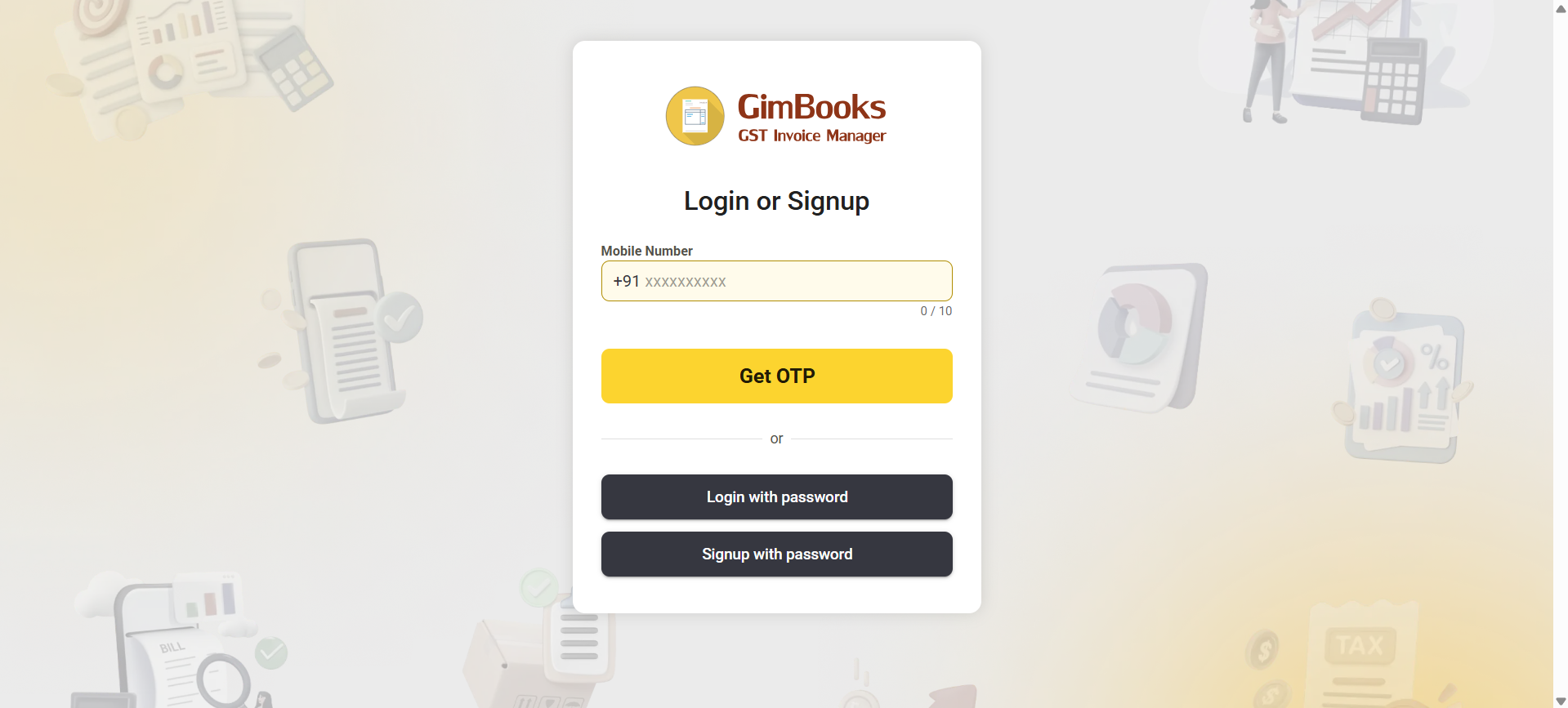
Step 1: Login
Open GimBooks, click on "Get Started," and log in to your GimBooks account.
Step 2: Add Product from Masters List
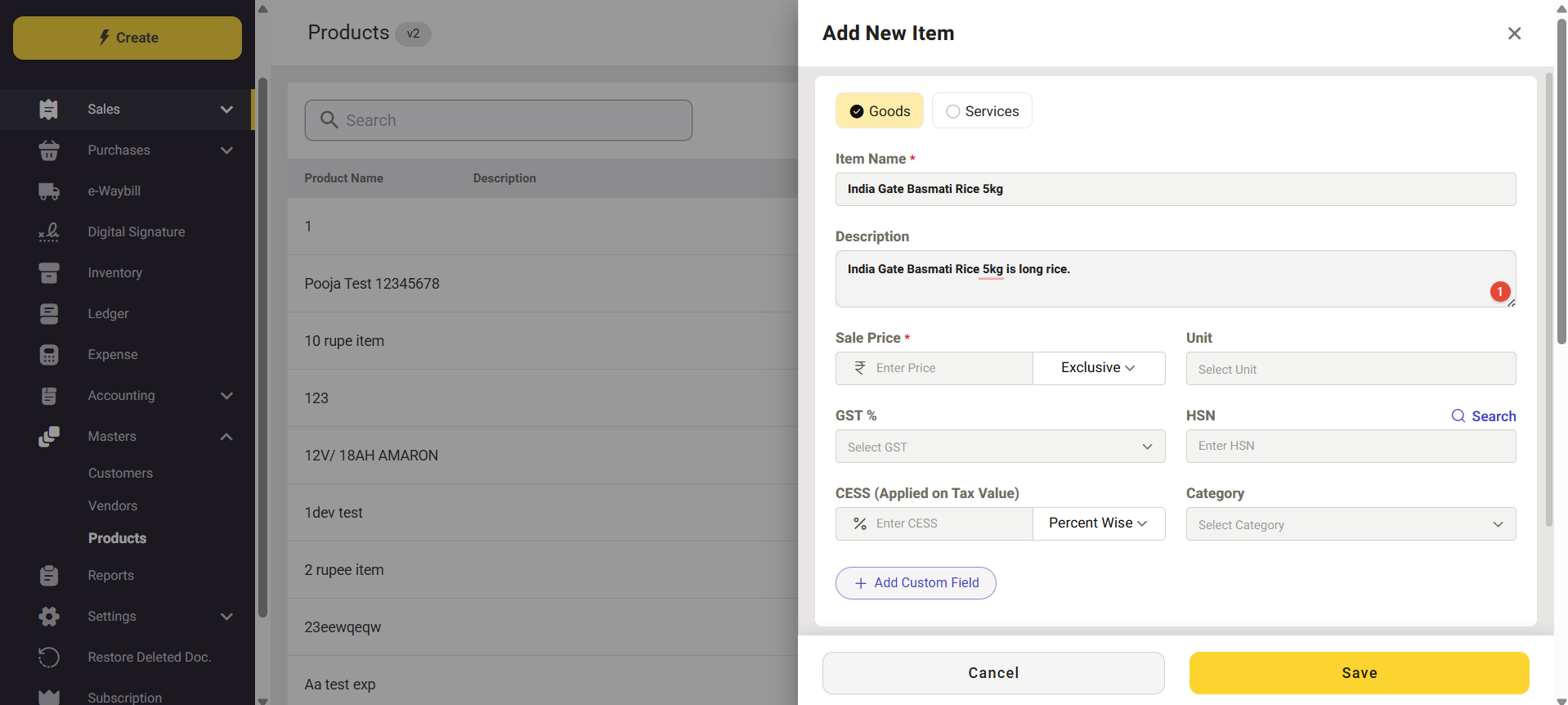
To add product, Click on Masters-> Products-> Add New Item.
Now add all the correct product details, like the item name, item description, sale price, product unit, GST rate, HSN code, CESS (applied to tax value), and product category.
Add the product's purchase price exclusively or inclusively from the dropdown.

Add stock details such as opening stock, batch-wise inventory, IMEI/serial number, low stock alert, secondary pricing unit, or wholesale pricing for wholesale transactions. And at last, you can add a product photo.
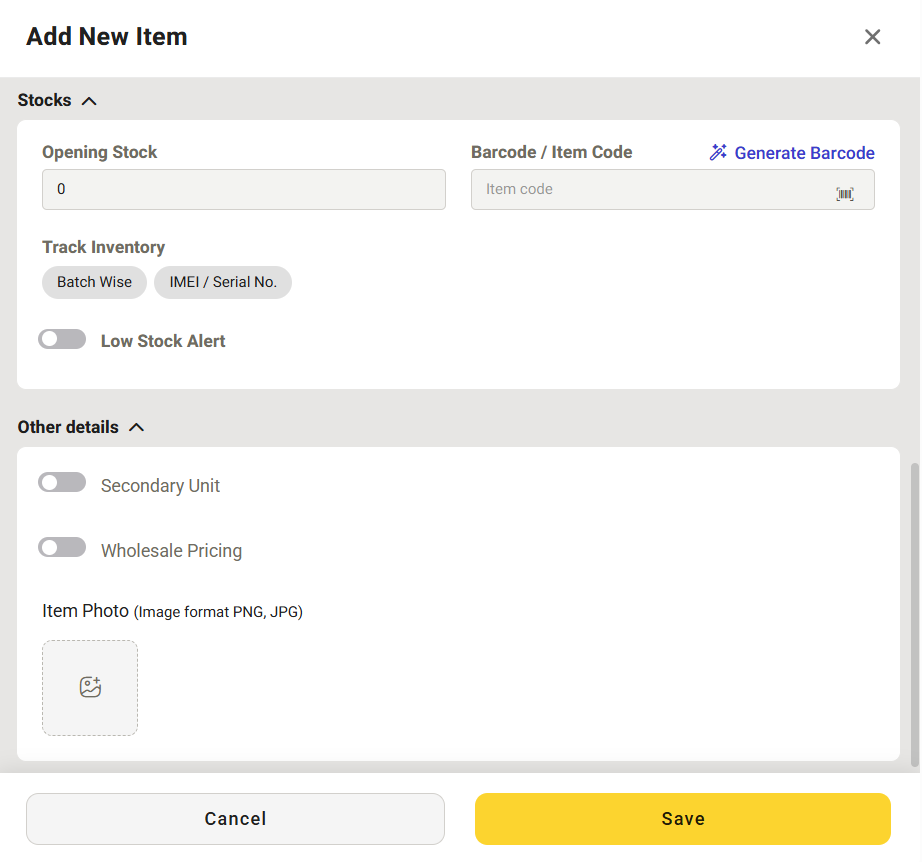
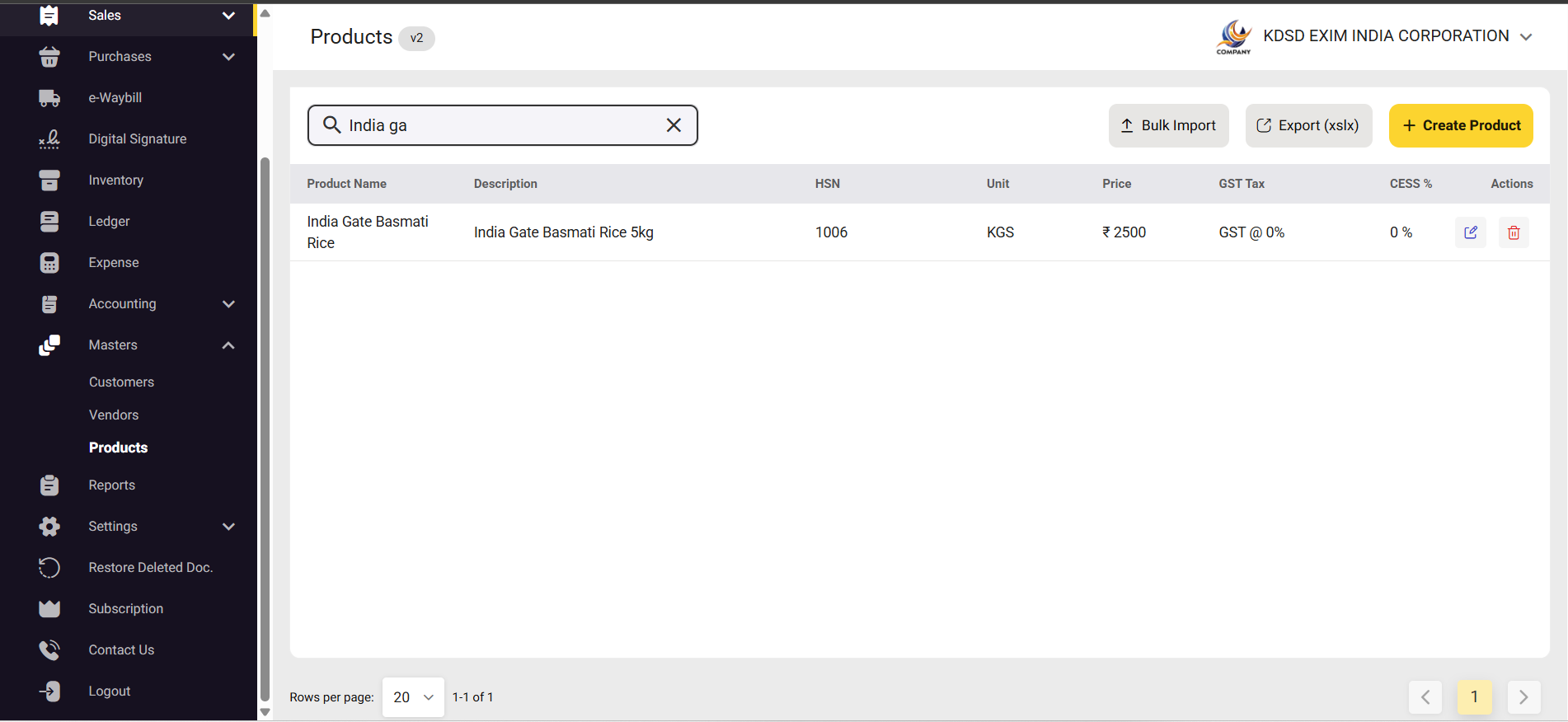
Now, check if the product has been added to the product list.
Click on Products.
Now on the product search bar, type your product's name. The added product will appear.
All About Product Details in GST Invoice
When you open a product in GimBooks, you see several details. Here is what each one means and whether it is required or optional.
| Field | What It Means | Required? |
|---|---|---|
| Item Name | How the product appears on invoices and reports | ✅ Yes |
| Item Code / SKU | Your own internal reference number for the product | Optional |
| Description | Extra details printed on the invoice — model, spec, brand | Optional |
| Category | Group products together — Electronics, Grocery, Hardware | Optional but useful |
| Unit | How you measure and sell the product — Pcs, Kg, Litre, Meter | ✅ Yes |
| Selling Price | Price charged to customers per unit | ✅ Yes |
| Purchase Price | What you paid per unit — used for profit calculations | Optional |
| Tax Applicable | Whether the item attracts GST or is exempt | ✅ Yes |
| GST Rate | The GST percentage for this product | ✅ Yes (if taxable) |
| HSN Code | Government classification code — mandatory on GST invoices | ✅ Yes |
| Opening Stock | How many units you have right now | ⭐ Recommended |
| Minimum Stock Level | The threshold at which you want a low-stock alert | Optional but valuable |
| Wholesale Price | Discounted price for bulk buyers | Optional |
| Barcode | For scanning at the billing counter | Optional |
| Product Photo | Image of the product shown on the invoice | Optional |
Read to know more about HSN code and GST rate list in GST Invoice.
Six Product Setup Mistakes That Slow Down Your Billing
Incorrect product details affect your stock total and then your sales total. Here is a list of mistakes and fixes that speed your product billing.
Mistake 1 : Skipping the GST rate
Many users leave the GST field blank or set it to 0% for all products.
Bills go out with no tax, which is a compliance problem.
Customers cannot claim ITC.
You receive GST notices.
→ Fix 1: Pick from auto-updated GST rate list.
Every taxable product must have the correct GST rate saved. Check it once when you set up the product and never worry about it again.
Mistake 2: Not adding the HSN code in invoice
Invoices go out without HSN codes. Buyers come back asking for corrected invoices. Your accountant gets annoyed.
→ Fix 2: Select HSN code in a second
HSN is an important field for GST compliance. Use GimBooks' HSN Finder or use the HSN code from the dropdown list.
Mistake 3: Creating the product with duplicate names
"Cement," "Cement Bag," "OPC Cement"- three entries for the same item. Now your stock is split across three records. Your reports are confusing.
→ Fix 3: Select HSN code in a second
HSN is an important field for GST compliance. Use GimBooks' HSN Finder or use the HSN code from the dropdown list.
Mistake 4: Adding Opening stock to 0
Skipping adding opening stock or skipping the stock field. And then your first few sales show negative stock. Your inventory reports are off from day one.
→ Fix 4: Add accurate stock
Count your actual stock before setup day. Enter the correct opening quantity. It makes every report accurate going forward.
Mistake 5: Using unclear product names
"Item 1," "Product A," "Misc." These names mean nothing to you or your customer in six months.
→ Fix 5: Use clear product names
Be specific. Include brand, size, variant, and unit where relevant.
"Fevicol SH 1 kg" is infinitely more useful than "adhesive."
Mistake 6: Not checking the file before uploading
Not checking the bulk import file before uploading Rushing through the Excel import without reviewing, then finding 50 products with wrong prices or blank GST rates.
→ Fix 6: Use clear product names
Always do a 5-product test import first. Make sure that all product details look correct. Then import the full list.
Manage your inventory easily with GimBooks.
Benefits of Using GimBooks for Stock Management
| Business Type | How They Use GimBooks Product Setup |
|---|---|
| Kirana / General Store | Add hundreds of FMCG products with correct GST rates (0%, 5%, 12%). Set low stock alerts for fast-moving items. Use barcode billing for faster checkout. |
| Medical Store / Pharmacy | Add medicines with HSN code 3004, batch numbers, expiry dates, and GST rates (mostly 5% or 12%). Use barcode scanning for quick dispensing. Track critical stock with alerts. |
| Hardware Shop | Manage products across multiple GST slabs. Set wholesale pricing for contractors. Organise inventory using categories like Electrical, Plumbing, and Tools. |
| Cloth / Textile Shop | Add fabrics with per-metre pricing. Apply GST based on value (5% below ₹1,000/piece, 12% above). Manage variants like size and colour easily. |
| Electronics / Mobile Shop | Track items using serial numbers (IMEI for mobiles, serials for laptops). Add barcodes for quick billing. Apply correct GST (18%) with HSN 8471 for electronics. |
| Distributor / Wholesaler | Handle bulk orders with party-wise pricing. Create custom price lists. Manage stock batches and large inventory efficiently using a structured product setup. |
If your business deals with products, billing, and stock management, using GST billing software with good inventory management for MSMEs keeps your business's day-to-day work clean, fast, and error-free as you scale.
Conclusion on Adding Product Correctly
If you don't set up or know how to add your products properly, your billing will always slow you down.
Take a few minutes to add the right details: item name, GST rate, HSN code, and stock. Once that’s done, everything else becomes faster: billing, stock tracking, and reports.
Set it right once in GimBooks, and your daily operations run without friction.
FAQ on How to do Product Setup & Inventory in GimBooks
Q: How do I add a product in GimBooks billing software?
Open GimBooks, go to Inventory or Items, and tap the + button. Enter item name, unit, selling price, GST rate, and HSN code. Add opening stock and tap Save. The product is ready for billing.
Q: Where is the Inventory section in GimBooks?
On mobile, open the app and tap Inventory or Items from the bottom menu or sidebar. On desktop, click Inventory from the left panel. This is where you manage all products.
Q: What is HSN code and why is it required?
HSN code is a GST classification code for products. It must appear on GST invoices. GimBooks automatically adds it to invoices once saved in the product.
Q: Can I add a product without HSN code?
Yes, but it’s not recommended. Invoices without HSN code are not GST-compliant and may create issues for Input Tax Credit.
Q: How do I set GST rate for a product?
While adding or editing a product, select the GST rate from the dropdown (0%, 5%, 12%, 18%, or 28%).
Q: How do I track stock in GimBooks?
Enter opening stock while creating the product. Stock updates automatically with every purchase and sale.
Q: Can I set low stock alerts?
Yes. Add a minimum stock level in the product. You’ll get alerts when stock goes below that level.
Q: How do I set wholesale and retail pricing?
Add both selling price and wholesale price. Set a minimum quantity for wholesale pricing. GimBooks applies pricing automatically.
Q: How do I add a barcode to a product?
Edit the product, enter or scan the barcode, and save. You can then use barcode scanning during billing.
Q: Can I import products from Excel?
Yes. Download the template, fill product details, and upload it. Start with a small test file before bulk import.
Q: How many products can I add?
Paid plans support unlimited products. Free plans also allow product addition with some feature limits.
Q: Do products appear automatically in billing?
Yes. Once saved, products show instantly during billing and auto-fill details like price, GST, and HSN.
Quick Business FAQs
Q: Why is product setup important in GimBooks?
It ensures accurate GST billing, proper stock tracking, and faster invoicing.
Q: What happens if product details are incorrect?
You may face GST errors, missing HSN codes, wrong stock reports, and slower billing.
Q: Which fields are most important?
Item name, unit, selling price, GST rate, and HSN code.
Q: Does product setup affect inventory tracking?
Yes. Correct setup ensures real-time stock updates and accurate reports.
Q: How does GimBooks simplify product management?
It auto-fills product details in invoices, updates stock instantly, and keeps everything organised.